> ## Documentation Index
> Fetch the complete documentation index at: https://docs.valmi.io/llms.txt
> Use this file to discover all available pages before exploring further.
# Google Sheets
> This guide describes how to configure Google Sheets OAuth for use with the valmi.io UI.
# Setting Up Google Sheets for OAuth
## Step 1: Create a Google Project
1. **Sign in to Google Cloud Console**: Visit the [Google Cloud Console](https://console.cloud.google.com/) and sign in using your Google account credentials.
2. **Create New Project**: Click on "Select a project" > "New Project".
3. **Enter Project Details**: Provide a name for your project (e.g., "valmi-io") and click "Create".
4. **Enable Sheets API**: In the dashboard, navigate to "APIs & Services" > "Library". Search for "Google Sheets API" and enable it for your project.
## Step 2: Configure OAuth Consent Screen
1. **OAuth Consent Screen**: In the Google Cloud Console, navigate to "APIs & Services" > "OAuth consent screen".
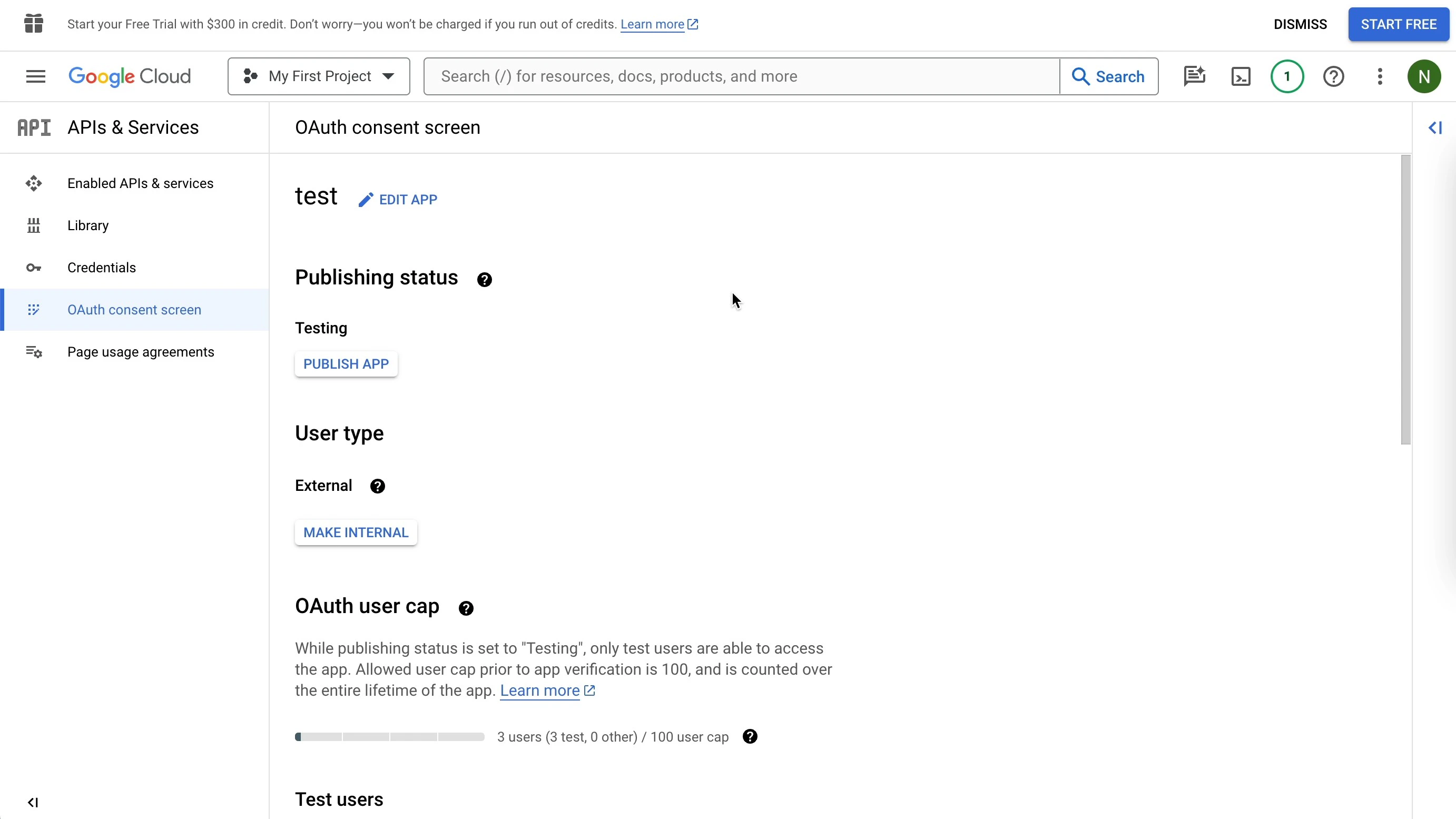 2. **User Type**: Choose the appropriate user type for your application (Internal or External).
3. **Application Name**: Enter the name of your application (e.g., "valmi.io").
4. **Scopes**: Add the required OAuth scopes for your integration:
* `https://www.googleapis.com/auth/userinfo.profile`
* `https://www.googleapis.com/auth/userinfo.email`
* `https://www.googleapis.com/auth/spreadsheets`
5. **Authorized Domains**: Add your application's domain to the authorized domains list.
6. **Save**: Click "Save" to save the OAuth consent screen settings.
## Step 3: Create OAuth Client ID
1. **Credentials**: In the Google Cloud Console, navigate to "APIs & Services" > "Credentials".
2. **Create Credentials**: Click "Create credentials" > "OAuth client ID".
2. **User Type**: Choose the appropriate user type for your application (Internal or External).
3. **Application Name**: Enter the name of your application (e.g., "valmi.io").
4. **Scopes**: Add the required OAuth scopes for your integration:
* `https://www.googleapis.com/auth/userinfo.profile`
* `https://www.googleapis.com/auth/userinfo.email`
* `https://www.googleapis.com/auth/spreadsheets`
5. **Authorized Domains**: Add your application's domain to the authorized domains list.
6. **Save**: Click "Save" to save the OAuth consent screen settings.
## Step 3: Create OAuth Client ID
1. **Credentials**: In the Google Cloud Console, navigate to "APIs & Services" > "Credentials".
2. **Create Credentials**: Click "Create credentials" > "OAuth client ID".
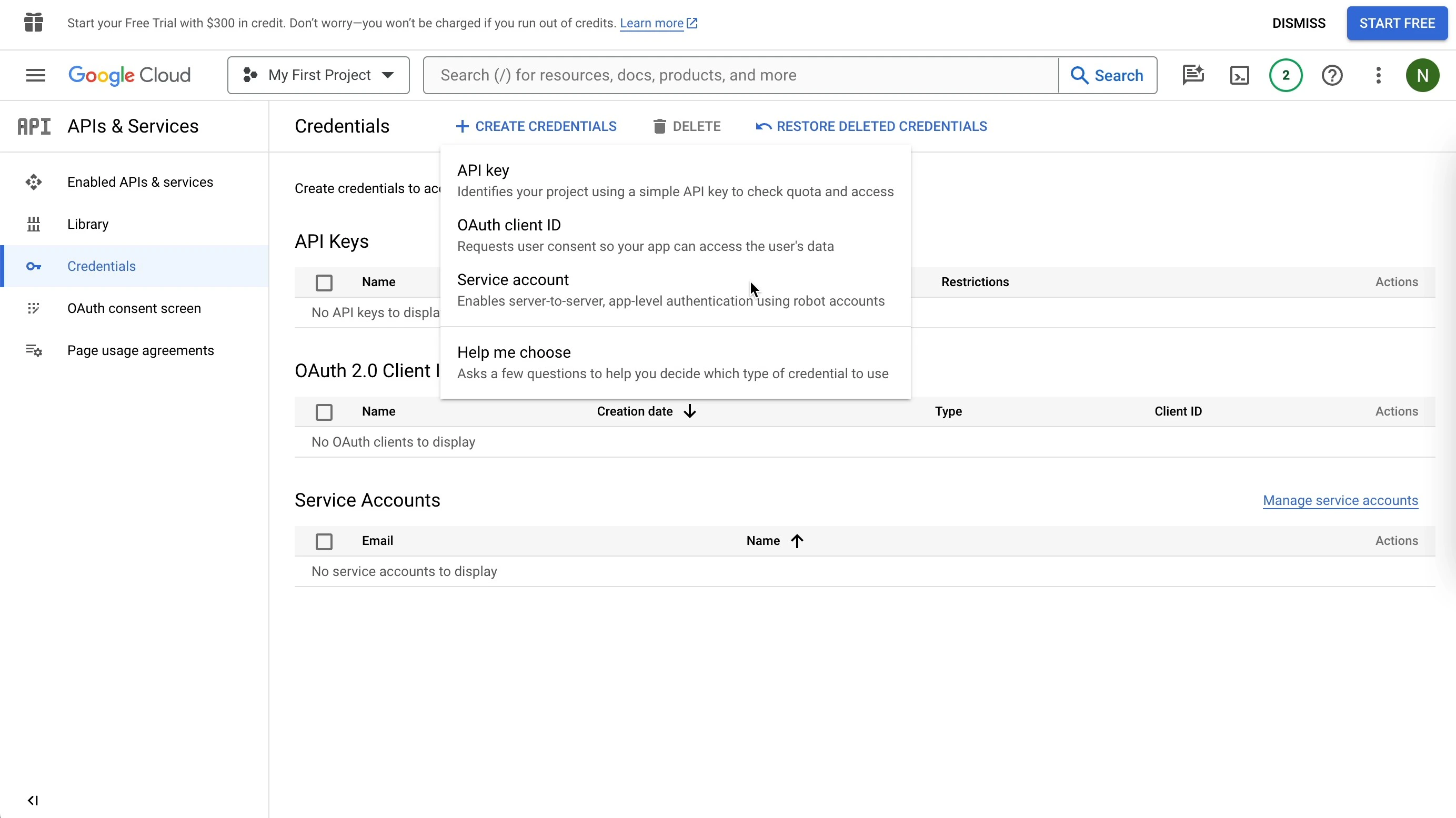 3. **Application Type**: Select "Web application" as the application type.
4. **Authorized Redirect URIs**: Add the redirect URI where Google will send users after authorization. Use the following format: `https://your-host/api/oauth2/redirect/google`.
3. **Application Type**: Select "Web application" as the application type.
4. **Authorized Redirect URIs**: Add the redirect URI where Google will send users after authorization. Use the following format: `https://your-host/api/oauth2/redirect/google`.
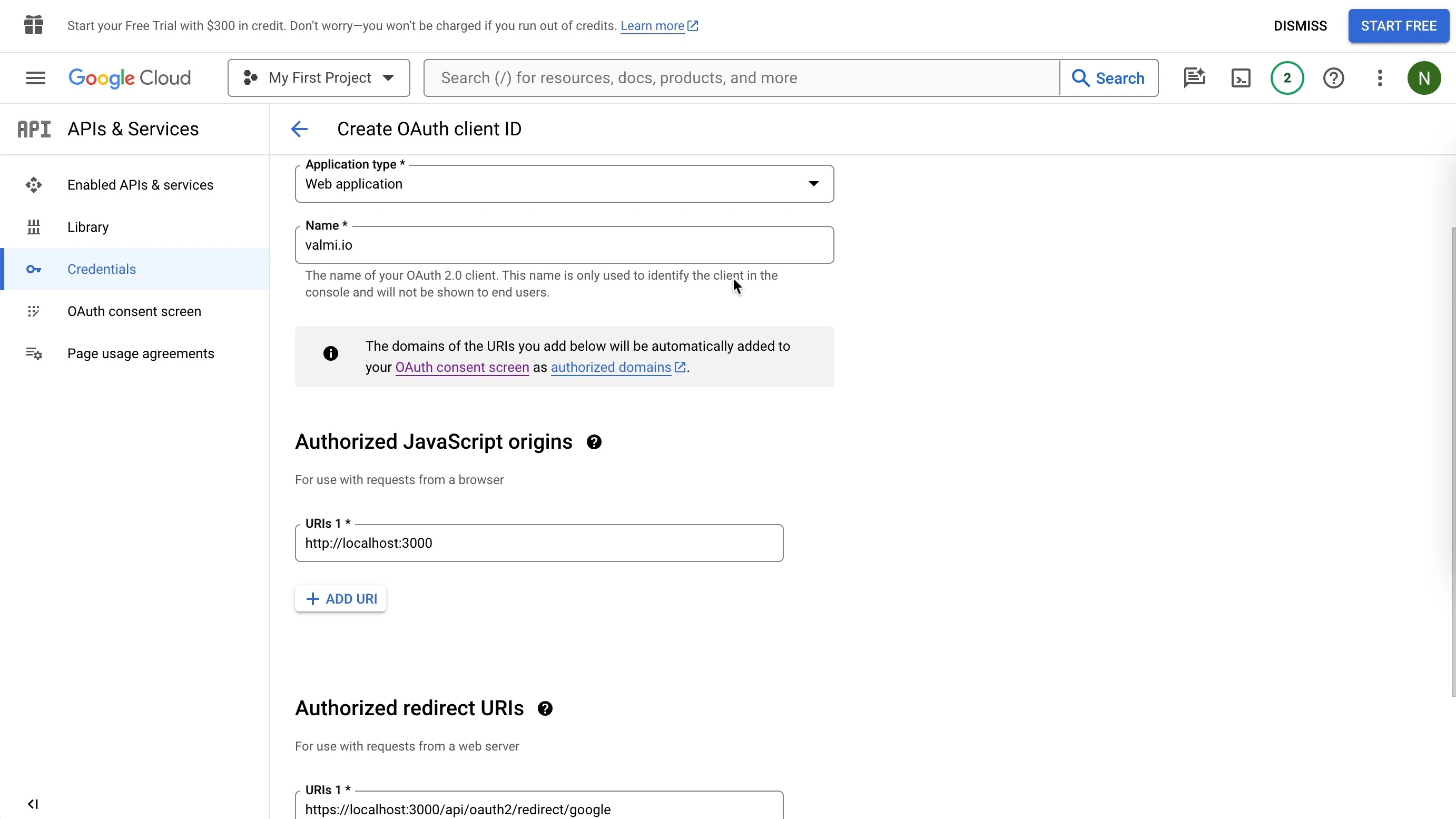 5. **Save**: Click "Save" to create the OAuth client ID.
6. **Copy Client ID and Client Secret**: Your Client ID and Client Secret will be displayed. Copy them for use in valmi.io.
## Step 4: Configure Google Sheets OAuth in valmi.io
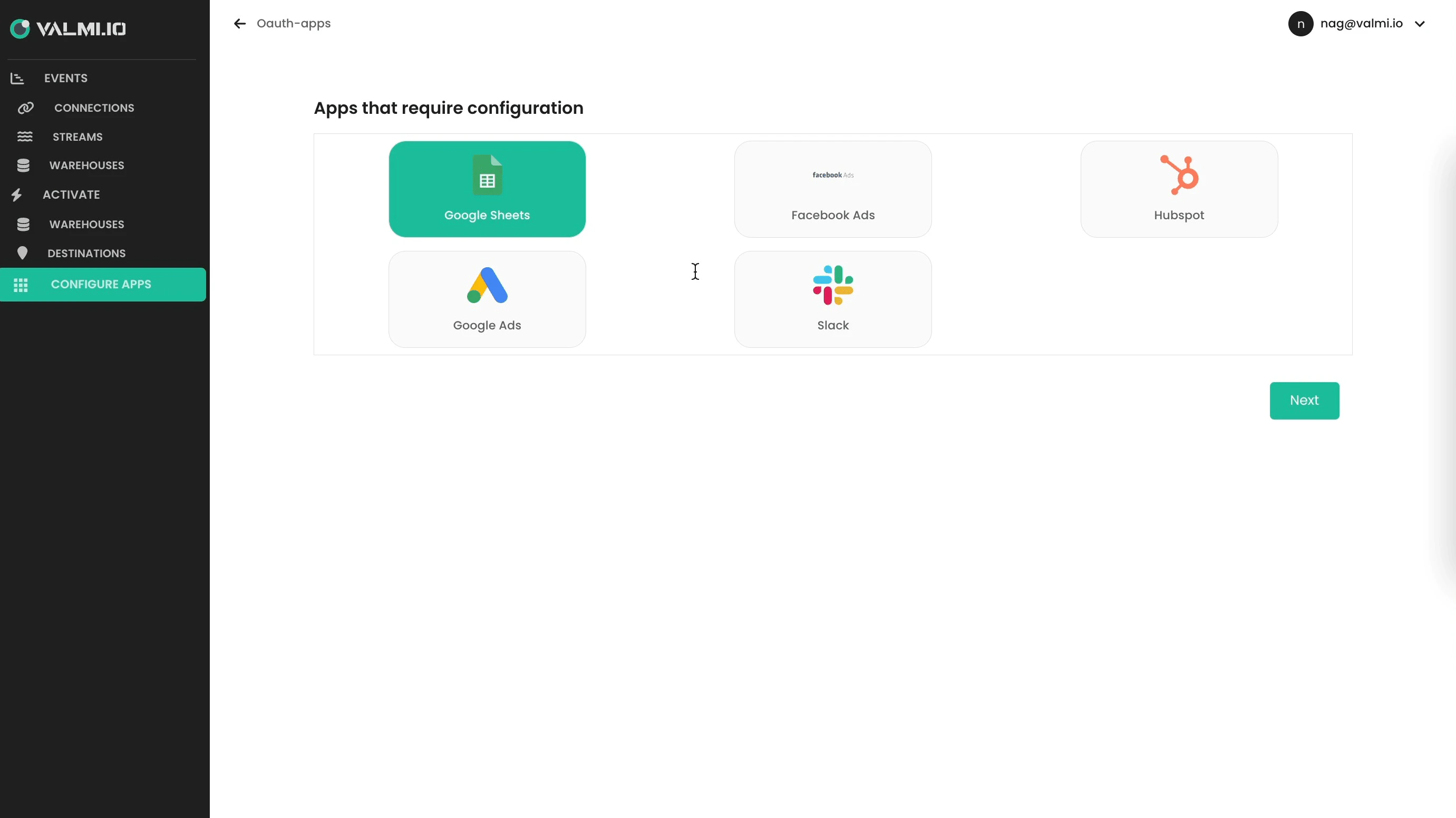
1. **Access Configuration**: In your application, navigate to the sidebar and select "CONFIGURE APPS".
5. **Save**: Click "Save" to create the OAuth client ID.
6. **Copy Client ID and Client Secret**: Your Client ID and Client Secret will be displayed. Copy them for use in valmi.io.
## Step 4: Configure Google Sheets OAuth in valmi.io
1. **Access Configuration**: In your application, navigate to the sidebar and select "CONFIGURE APPS".
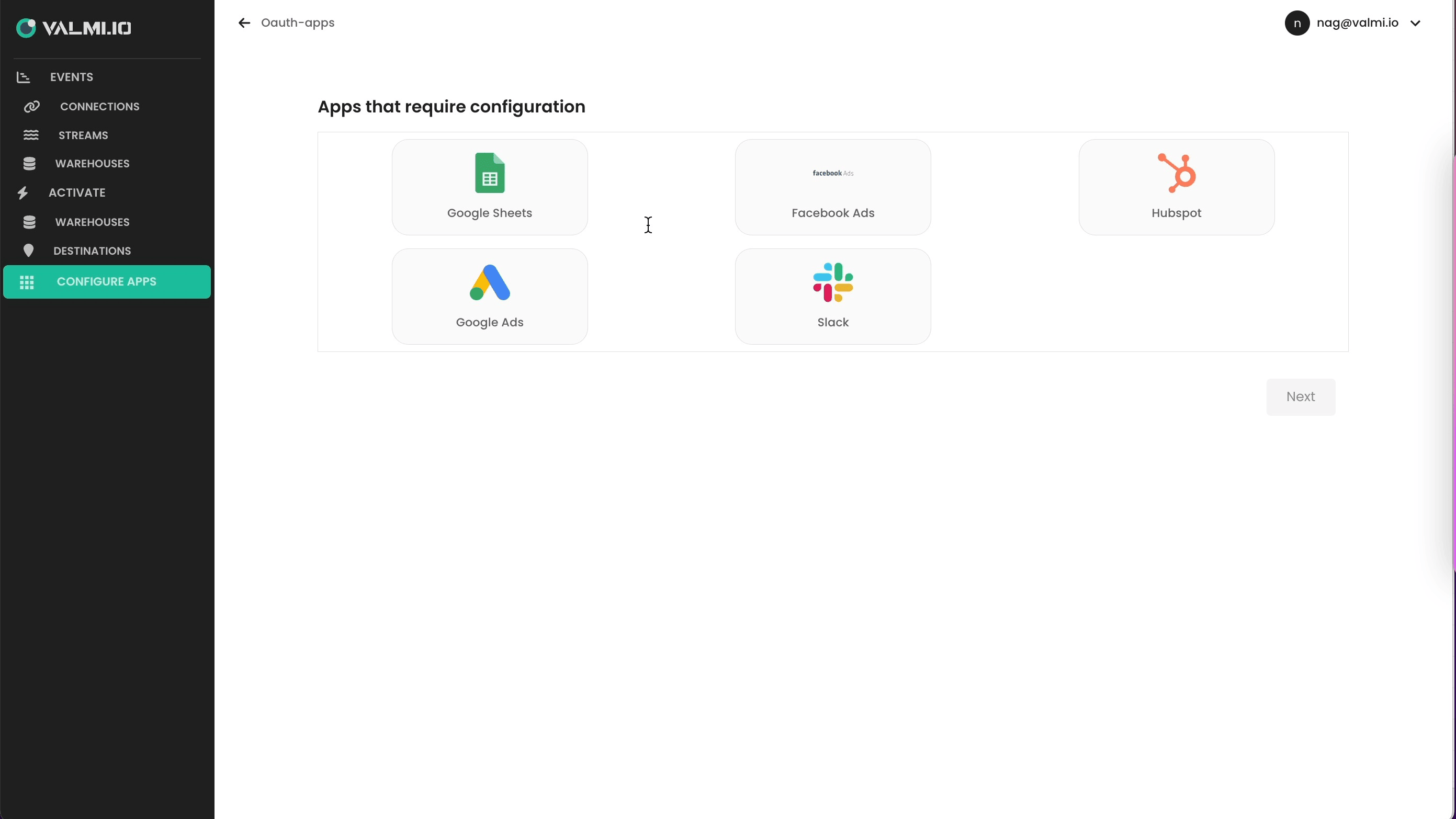 2. **Select Google Sheets OAuth Application**: Find the Google Sheets OAuth application from the list of available applications and select it.
 3. **Enter Credentials**: Provide the Google Client ID and Client Secret that you obtained earlier into the input fields.
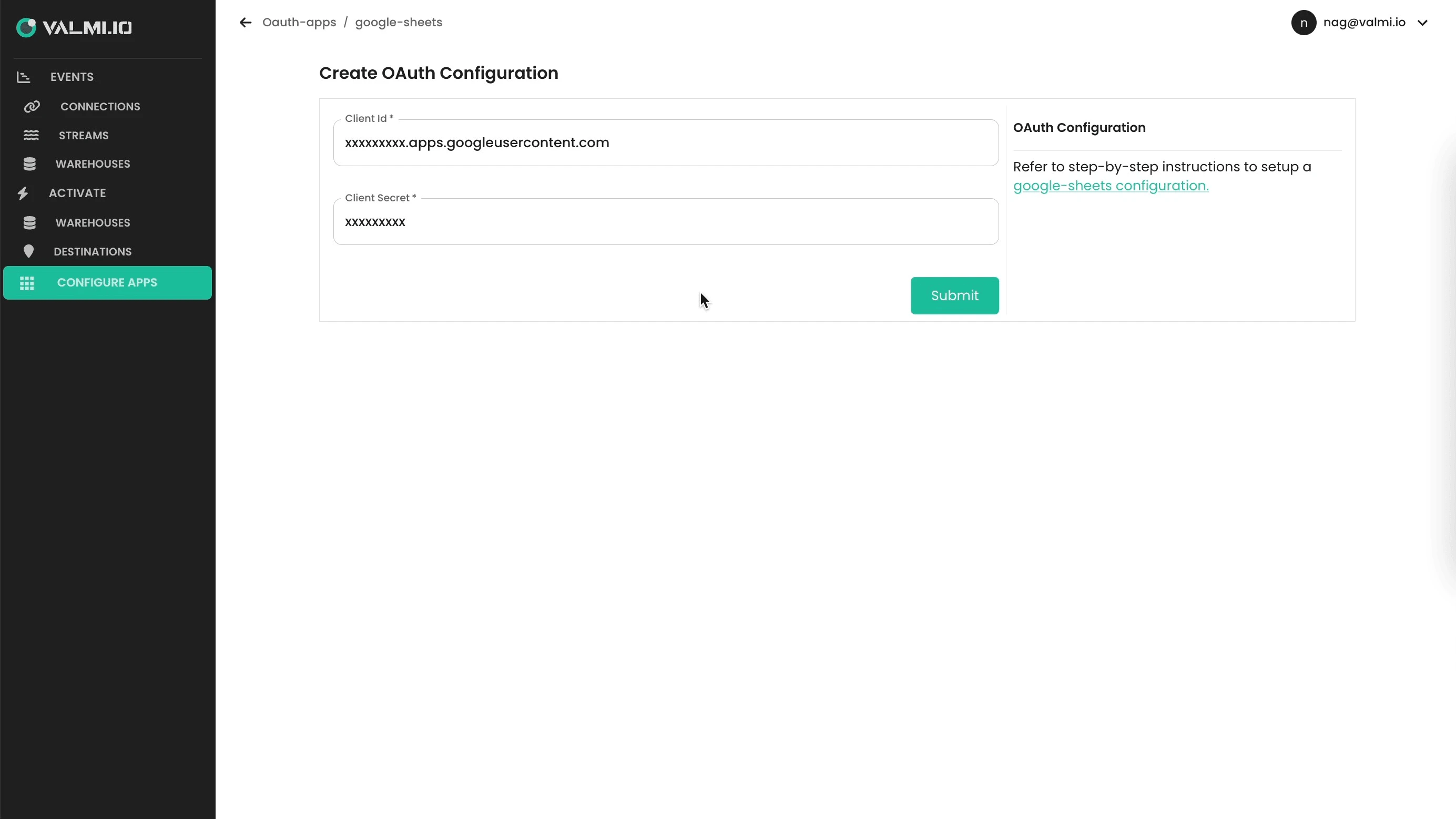 4. **Save Configuration**: Click "Save" or "Update" to save the configuration.
This documentation is built and hosted on [Mintlify](https://mintlify.com), a developer documentation platform.
4. **Save Configuration**: Click "Save" or "Update" to save the configuration.
This documentation is built and hosted on [Mintlify](https://mintlify.com), a developer documentation platform.